Your last message, ready to reuse
knowhash exists so you never have to write the same LinkedIn message twice. Templates get you most of the way there. But some of your best messages aren't templates at all — you tweak one to suit the person, or write something fresh that lands well, and then it's gone.
Not any more. knowhash now remembers the last invite note and the last message you sent, and puts them one keystroke away.
One keystroke
Click into an empty compose box and press \. Your last message drops in, ready to read and send.
Press \ in an empty box and your last message is there. You read it, then you press Send.
It works for connection notes and for message threads, and each keeps its own: the last invite you sent and the last message you sent are remembered separately, so writing to a new connection never overwrites the message you use with people you already know. / still opens your templates, and if you haven't sent anything yet, \ simply opens them for you.
Prefer a button? It's on the panel
The knowhash panel shows what it's remembered: Last invite when you're writing a connection note, Last message when you're in a conversation. Click Fill and it goes into the compose box.
What you see depends on what you sent.
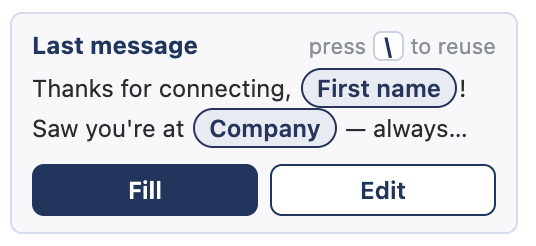
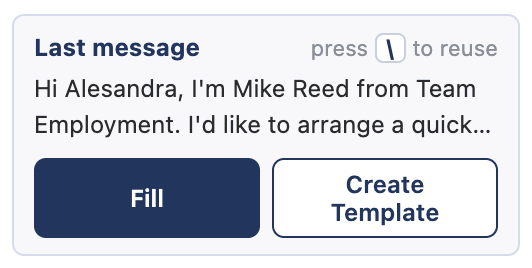
A template comes back with the name and company as pills, so it fills in for whoever you're looking at now, not the person you sent it to last time. An edited message comes back as you wrote it, and when you fill it for someone new, knowhash swaps the previous person's name and company for the one on screen. “Hi Sarah” never goes to Tom.
Turn it into a template in one click
Wrote something that worked? Create Template saves it straight away. The recipient's name, company and headline become pills, and so do your own name and company, so the next person gets a message that already knows who they are. It's added to your templates, and Edit lets you rename it or tidy it up.
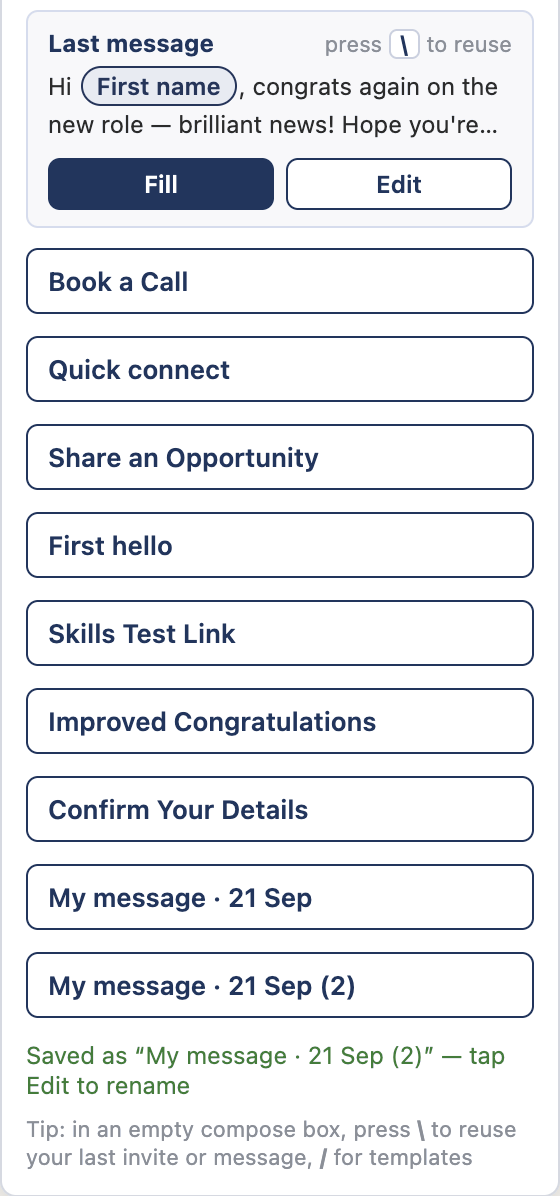
Create Template saves it in one click. The box shows it as a template, and it's already in your list.
You never have to open the Templates manager. Your templates build themselves from the messages you actually send.
You're still the one who presses Send
knowhash fills the box; you read it and press Send. It only remembers a message once you've pressed Send and the compose box has cleared, so drafts you abandon are never saved. And it all stays in your own browser alongside your templates: no account, no server, nothing hashed together somewhere else.
The last-message box is in both knowhash (free) and knowhash Recruit. Chrome updates extensions automatically, so look for version 0.7.1 of knowhash or 0.10.0 of knowhash Recruit. New here? Get knowhash.